Tool-Enabled AI Chat (Open WebUI + MCP)
Tool-Enabled AI Chat (Open WebUI + MCP) is a local AI stack for Give your local AI superpowers by connecting it to files, web search, databases, and APIs via MCP. Open WebUI + Ollama + MCP servers = ChatGPT with tool calling. Connect file access, web search, database queries, and more to your local AI. All private, $0/mo. It combines 6 components, is rated advanced, and takes about 25 minutes to set up. Expect about $199 for the cheapest listed device that fits (NVIDIA RTX 3060 12GB) and $0/month versus cloud.
- Cost
- $199
- NVIDIA RTX 3060 12GB · $0/mo vs cloud
- Difficulty
- advanced
- Setup time
- ~25 min
- Use case
- Give your local AI superpowers by connecting it to files, web search, databases, and APIs via MCP
What's in this stack
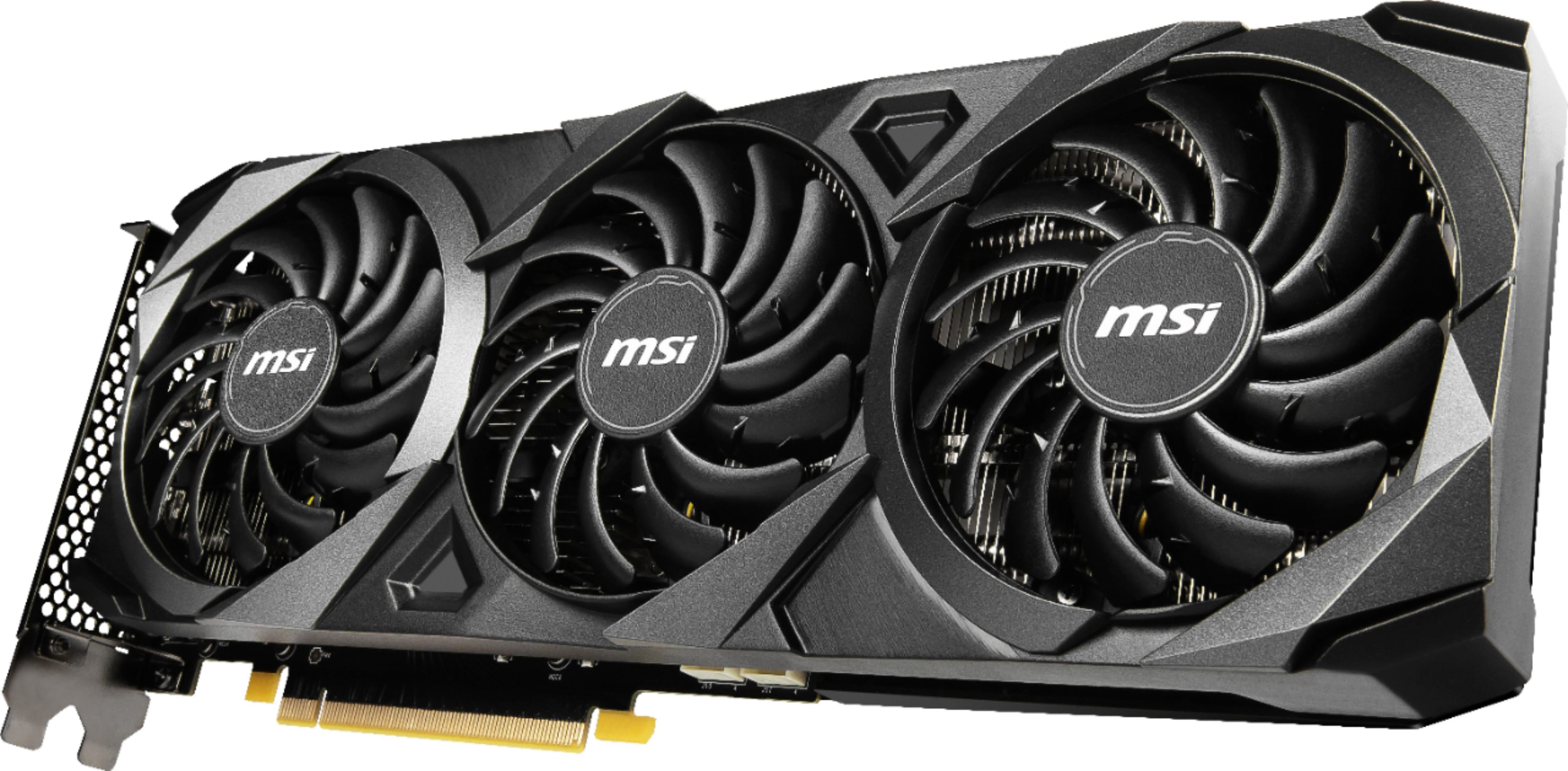 NVIDIA RTX 3060 12GB
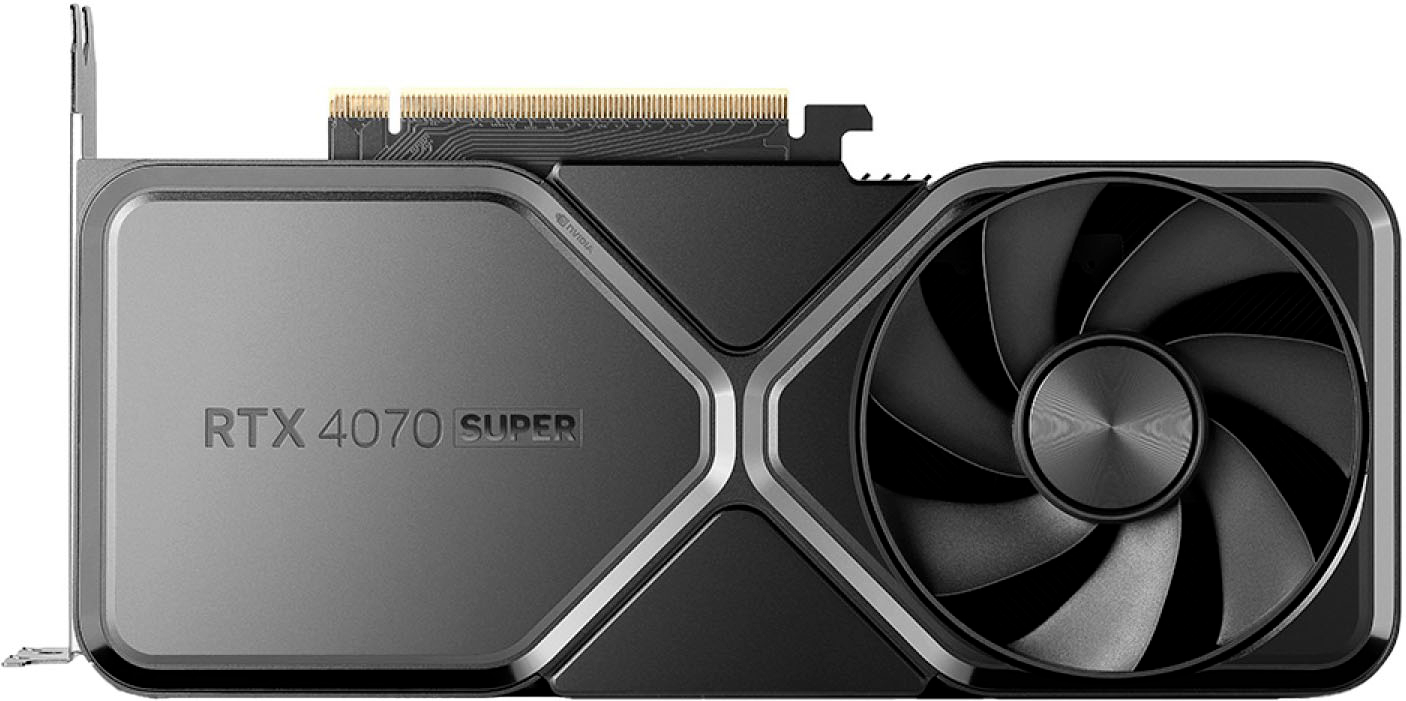 NVIDIA RTX 4070 Super
 Open WebUI
 Ollama
Models are alternatives; fit is judged on the smallest (Q4_K_M weights + ~1.8 GB runtime overhead vs device memory). Speeds are for Llama 3 8B; "est." values are estimated from memory bandwidth.
Tool-Enabled AI Chat (Open WebUI + MCP)
Supercharge your local AI with tools. Open WebUI is the most popular self-hosted ChatGPT interface, and it now supports the Model Context Protocol (MCP) - an open standard that lets your AI connect to filesystems, web searches, databases, APIs, and more. Pair it with Ollama for local inference and you get a ChatGPT-like experience with plugin-style tool calling - all running on your own hardware.
What you get
- ChatGPT-like UI with multi-chat tabs, history, and model switching
- MCP tool calling - your AI can read files, search the web, query databases, and call APIs
- Web search - connect a web search MCP server for up-to-date answers
- File access - read, write, and analyze local files
- Code execution - built-in Python sandbox for data analysis
- RAG - upload documents and ask questions against your knowledge base
- Multi-user - share with your team with role-based access
- 100% private - everything runs on your hardware, no cloud dependency
Architecture
| Component | Role |
|---|---|
| Open WebUI | Chat UI + MCP client that orchestrates tool calls |
| Ollama | Serves local LLM with function-calling support |
| MCP Servers (various) | Tools: filesystem, web search, database, etc. |
| Qwen3 14B | Default model - strong tool-calling capabilities |
For better tool-calling reliability, a higher quantization level (Q6_K or Q8) is recommended. Recommended GPU: RTX 3060 12GB or RTX 4070 Super for more headroom.
Prerequisites
- GPU with ≥12 GB VRAM (tool calling benefits from higher quant models)
- Docker + Docker Compose
- Node.js + npm (for some MCP servers)
- ~15 GB free disk
Setup
Step 1: Start Ollama
docker run -d --gpus all -p 11434:11434 --name ollama \
  -v ollama:/root/.ollama \
  ollama/ollama
Pull a model with strong function-calling:
docker exec ollama ollama pull qwen3:14bFor better tool-calling accuracy, pull a higher quant:
docker exec ollama ollama pull qwen3:14b:q8_0Step 2: Start Open WebUI with MCP Enabled
services:
  open-webui:
    image: ghcr.io/open-webui/open-webui:main
    container_name: open-webui
    depends_on:
      - ollama
    environment:
      - OLLAMA_BASE_URL=http://ollama:11434
      - MCP_ENABLE=true
      - ENABLE_TOOLS=true
    volumes:
      - open-webui:/app/backend/data
    ports:
      - "3000:8080"
    restart: unless-stopped

  ollama:
    image: ollama/ollama:latest
    container_name: ollama
    volumes:
      - ollama:/root/.ollama
    ports:
      - "11434:11434"
    deploy:
      resources:
        reservations:
          devices:
            - driver: nvidia
              count: all
              capabilities: [gpu]
    restart: unless-stopped

volumes:
  ollama:
  open-webui:
docker compose up -dOpen http://localhost:3000 and create your admin account.
Step 3: Configure MCP Tools
Go to Admin Panel → Settings → External Tools in Open WebUI.
Here you can add MCP servers. The simplest method is to use the mcpo proxy which wraps MCP servers as OpenAI-compatible endpoints.
Add Web Search (Brave Search MCP)
# Install the Brave Search MCP server
npx -y @anthropic/mcp-server-brave-search
In Open WebUI External Tools, add a new tool pointing to the MCP server.
Add Filesystem Access
Filesystem MCP lets your AI read and write files in allowed directories:
npx -y @modelcontextprotocol/server-filesystem /allowed/pathUse Pre-Built Tool Collections
Open WebUI has a community tools library. Browse available tools from within the admin panel.
Step 4: Use Tools in Chat
- Start a new chat in Open WebUI
- Click the tools icon (wrench) next to the input box
- Select which tools the AI can use this session
- Ask something that requires a tool: "Search the web for latest AI news" or "Read the data.csv file and summarize it"
The AI will decide when to call a tool, execute it, and incorporate the results into its response.
Use it
Web-Aware Assistant
Enable web search. Ask "What's the latest on the Gemma 4 release?" - the AI searches the web, reads results, and gives you a summary with sources.
Data Analyst
Upload a CSV, enable the code interpreter. Ask "Create a chart of monthly sales trends" - the AI reads the file, writes Python, executes it, and displays the chart.
Documentation Helper
Connect the filesystem MCP to your project's docs folder. Ask "Find the API endpoint for user authentication" - the AI reads your docs and answers from them.
Research Assistant
Enable web search and filesystem access. Ask "Research vector databases and save a summary to research.md" - the AI searches, reads, and writes the file.
Cost vs cloud
| Local Open WebUI + MCP | ChatGPT Plus + Plugins | |
|---|---|---|
| Monthly | $0 | $20 |
| Hardware | ~$600 once | $0 |
| Tool selection | Unlimited, any MCP | Limited curated set |
| Data privacy | Stays on your machine | Sent to OpenAI |
| Web search | Via MCP, free | Via Bing, limited |
| Code execution | Local sandbox | Cloud sandbox |
Troubleshooting
- Tool calls not working → Make sure
MCP_ENABLE=trueis set in the Open WebUI environment. Some models need a higher quant for reliable function calling (useq8_0). - MCP server shows "connection refused" → If running MCP servers on the host, use
host.docker.internalinstead oflocalhostfrom within Docker. - Model doesn't call tools → Not all models support function calling well. Qwen3 and Llama 3.1 have strong tool-calling. Avoid very small models (<7B).
- Web search returns nothing → Check that the MCP server is running (
npxcommand still active). Add--add-host host.docker.internal:host-gatewayto the Open WebUI container. - Slow with tools → Tool calling adds latency. Use Q4 quant for speed, Q8 for reliability.
Swap components
- MCPO proxy → Use mcpo to wrap MCP servers as OpenAI-compatible endpoints for simpler integration.
- vLLM instead of Ollama → For high throughput, serve models with vLLM which has native MCP tool-calling support.
- Any OpenAI-compatible provider → Open WebUI works with OpenAI, Anthropic, and any OpenAI-compatible endpoint alongside Ollama.
- Desktop app → Use the Open WebUI desktop app instead of Docker for simpler local setup.
Frequently asked
What is the Tool-Enabled AI Chat (Open WebUI + MCP) stack for?
Open WebUI + Ollama + MCP servers = ChatGPT with tool calling. Connect file access, web search, database queries, and more to your local AI. All private, $0/mo. It is purpose-built for Give your local AI superpowers by connecting it to files, web search, databases, and APIs via MCP and runs entirely on your own hardware.
How much does the Tool-Enabled AI Chat (Open WebUI + MCP) stack cost?
Tool-Enabled AI Chat (Open WebUI + MCP) costs about $199 for the cheapest listed device that fits (NVIDIA RTX 3060 12GB) up front and $0/month to run, since everything is self-hosted — no per-token or subscription fees versus a cloud equivalent.
How long does it take to set up Tool-Enabled AI Chat (Open WebUI + MCP)?
Plan for roughly 25 minutes. The stack is rated advanced.
What do I need to run Tool-Enabled AI Chat (Open WebUI + MCP)?
Tool-Enabled AI Chat (Open WebUI + MCP) is built from 2 tool(s), 2 model(s), 2 hardware item(s). Each is listed below with a link.